-
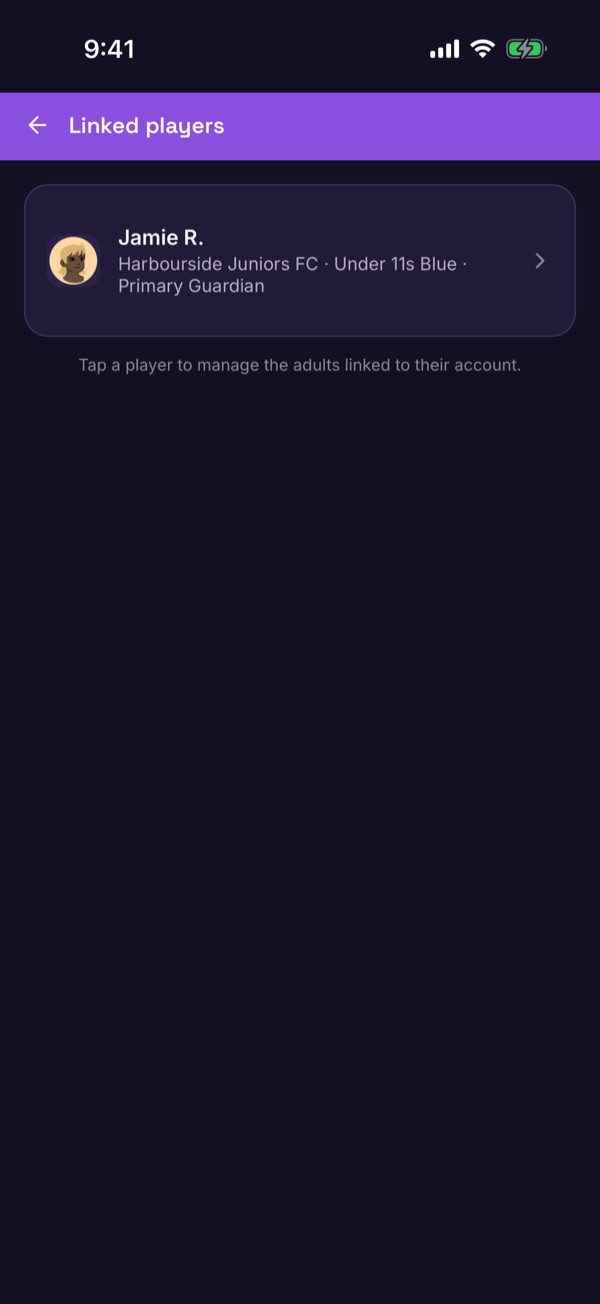
Open Linked players
Tap the icon at the top right of Home to open your Profile, then tap Linked players.
-
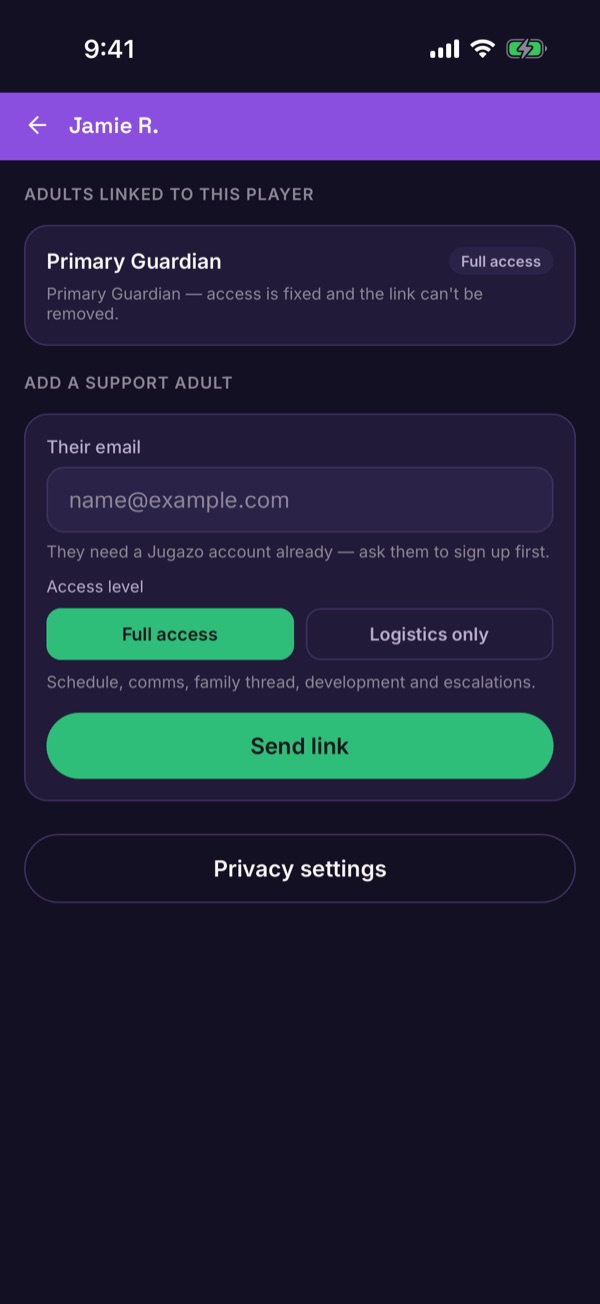
Choose the player
Tap your child's name. You'll see the adults linked to their account, and a Privacy settings button.
-
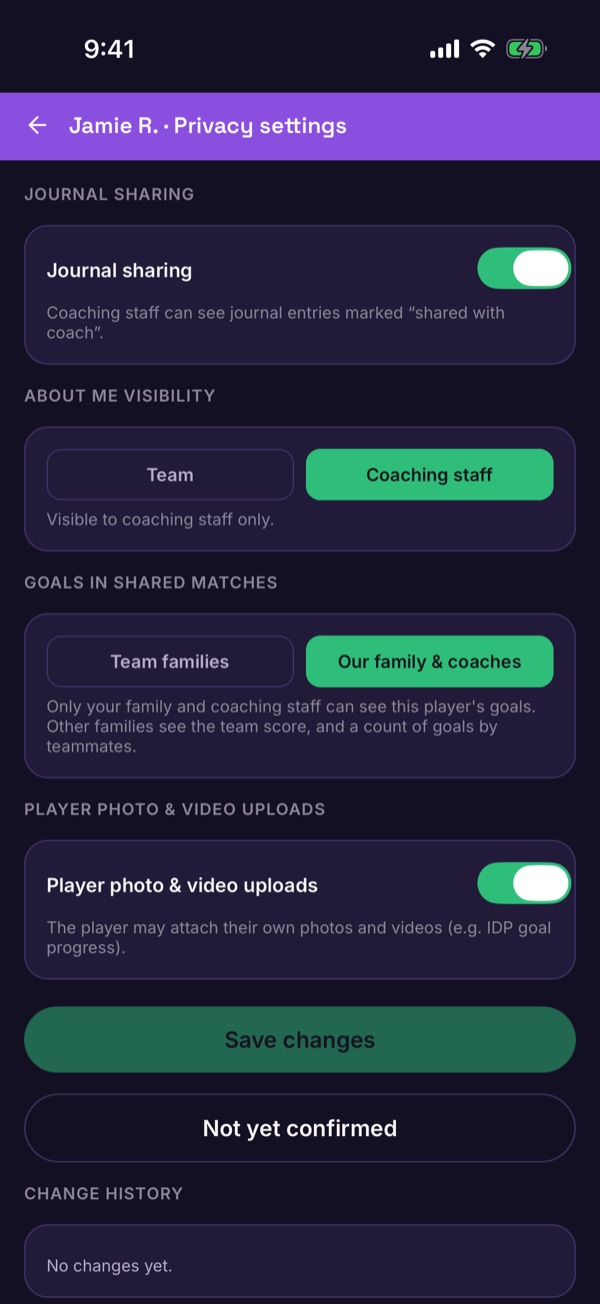
Choose the settings
Tap Privacy settings. You can control Journal sharing with coaches, who can see About Me, whether other families can see this player's goals in shared matches, and whether the player can attach their own photos and videos.
-
Save
Tap Save changes. Changes are recorded in the change history at the bottom of the screen.
Good to know. Only the Primary Guardian can change these settings. Support adults can see them but not change them. Player profiles use an avatar rather than a real photo — chat photo-sharing stays a family/coach choice, not a platform default.