-
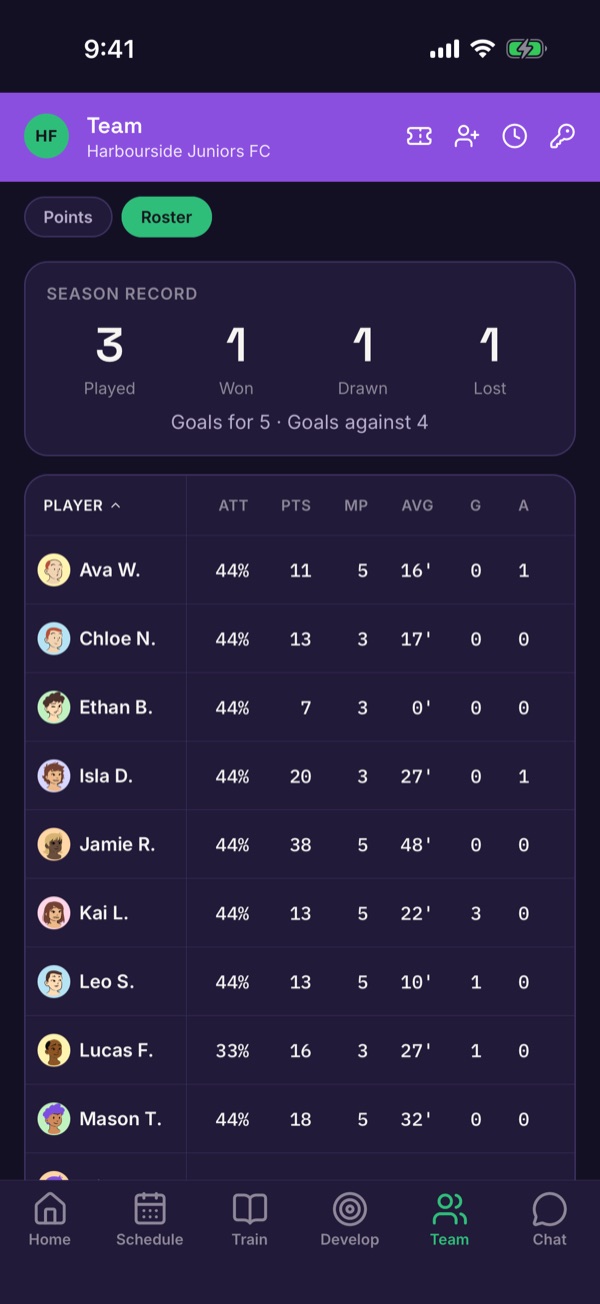
Open the team roster
Tap Team, then Roster. The icons at the top right are for joining and managing the team.
-
Make a join code
Tap the key icon (Join codes), then + to generate a code. Share the code with the team's families. Each code shows when it expires, and you can Revoke one at any time.

-
Families ask to join
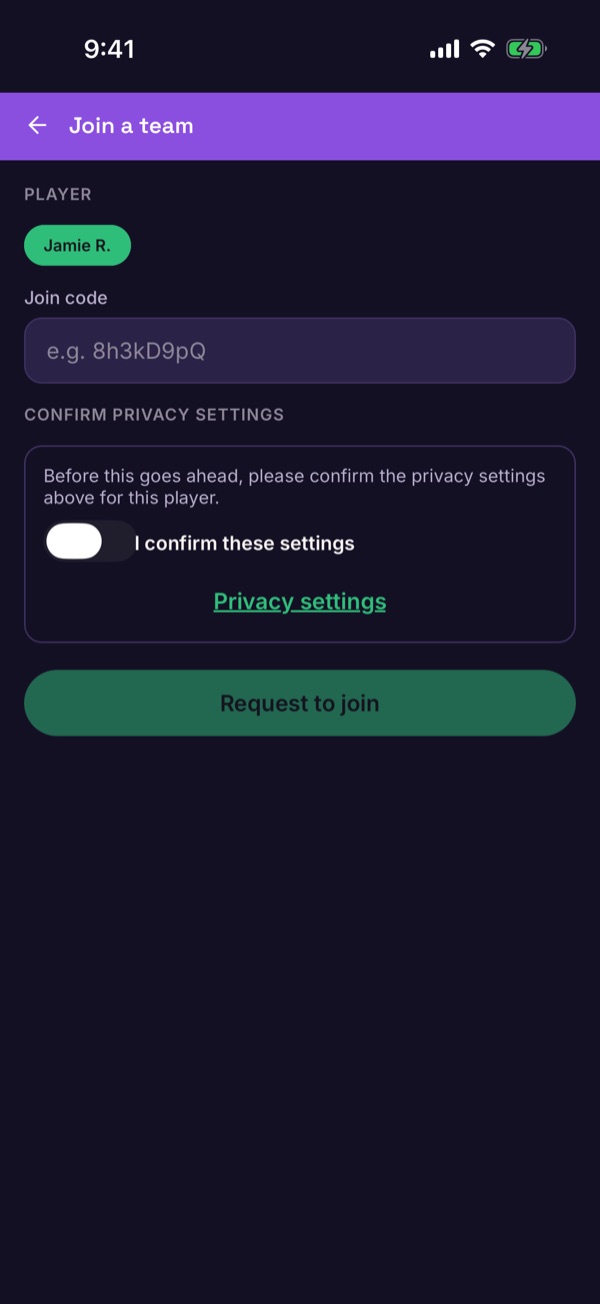
A parent opens Team, taps the ticket icon (Redeem a code), chooses their player, types the Join code and taps Request to join. They're asked to confirm the player's privacy settings as part of joining.
-
Approve the request
Tap the clock icon (Pending requests). Tap Approve to add the player, or Decline — the family will need a new code to try again.

-
Or add a player yourself
If the player is already in your club, tap the person icon (Add player), search by name and add them to the team.

Good to know. Join codes only ask to join. Nobody is added until you approve.