-
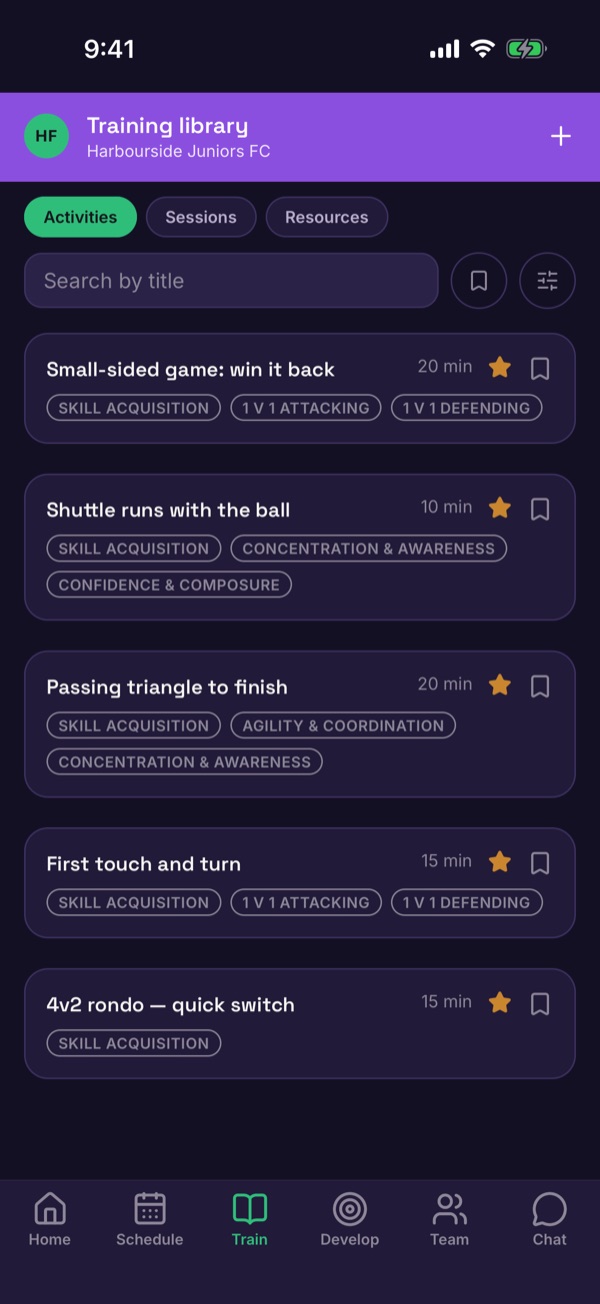
Open the Training library
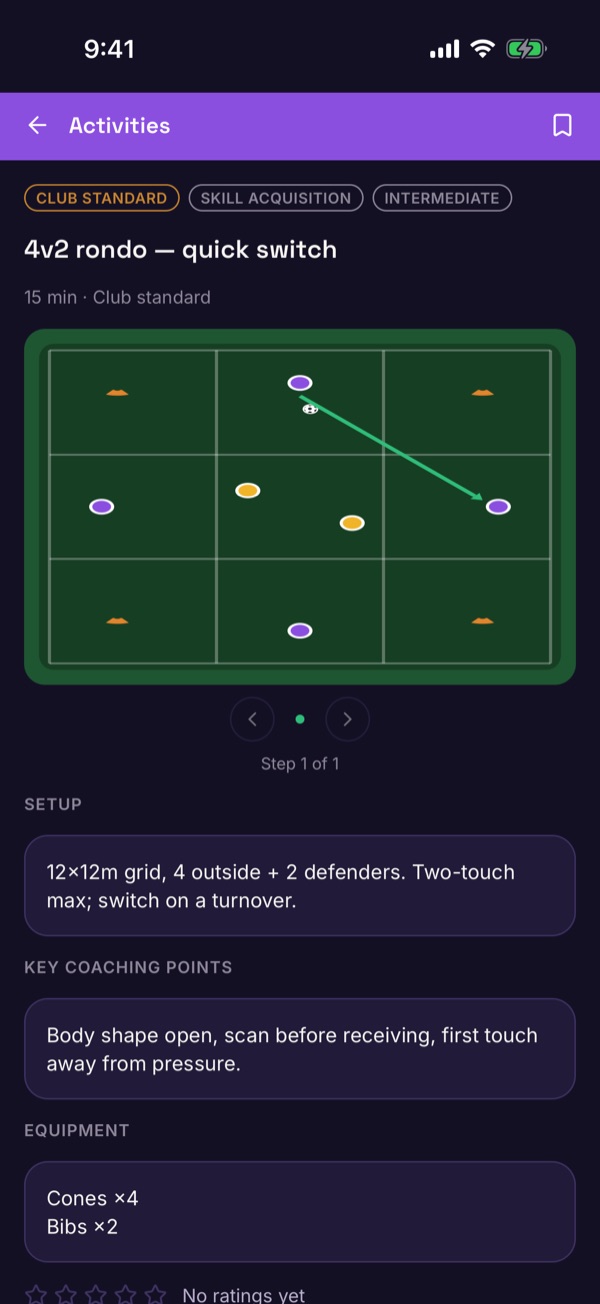
Tap Train in the bottom menu. Activities, Sessions and Resources are along the top. Tap an activity to see its diagram, set-up and coaching points.
-
Start a new activity
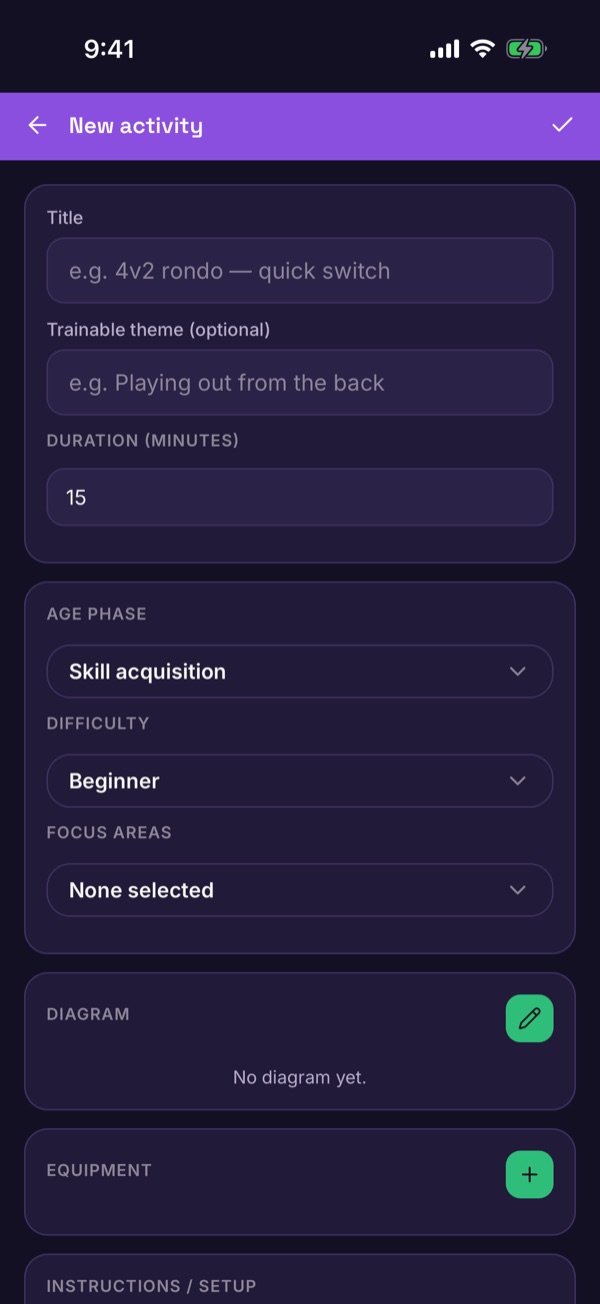
Tap + at the top right of the library. Add a Title, an Objective (what you are trying to achieve) and the Duration in minutes.
-
Describe it
Choose an Age phase and a Difficulty, then pick the Focus areas it covers.
-
Draw the diagram
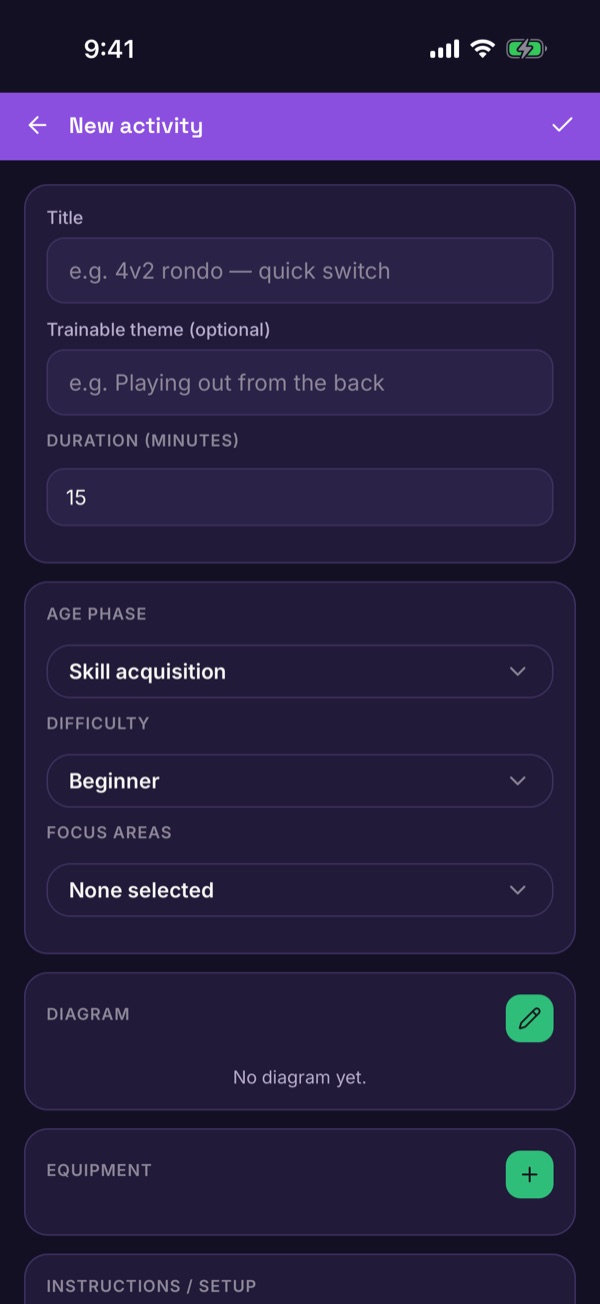
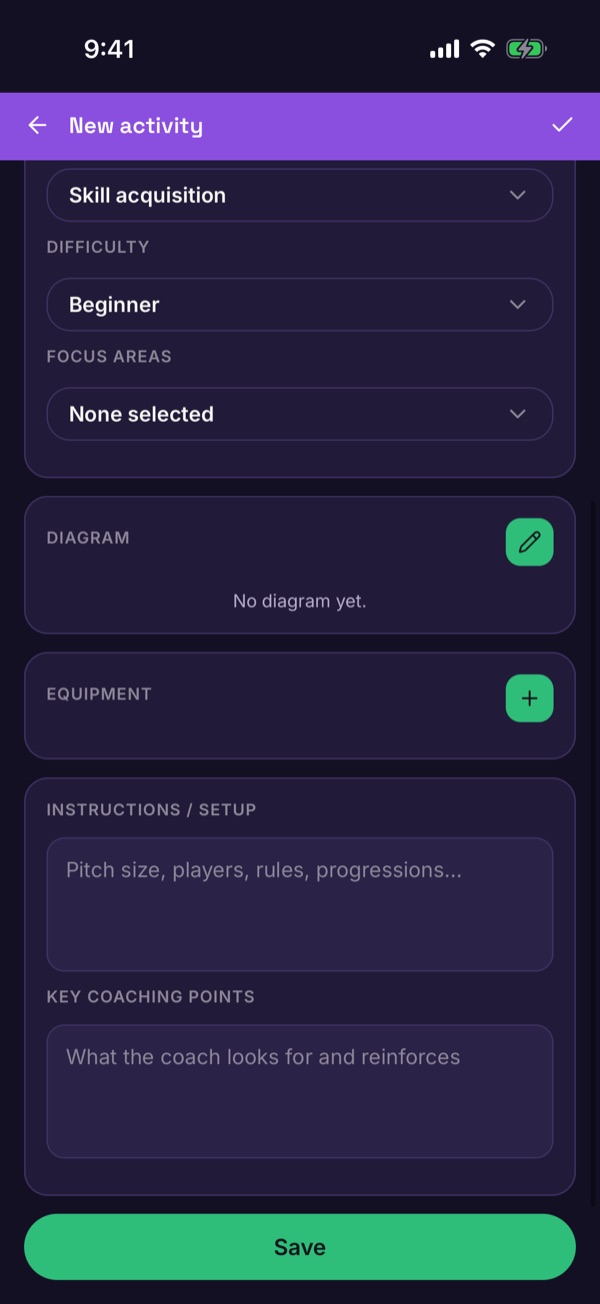
Tap the pencil next to Diagram.
-
Place players and cones
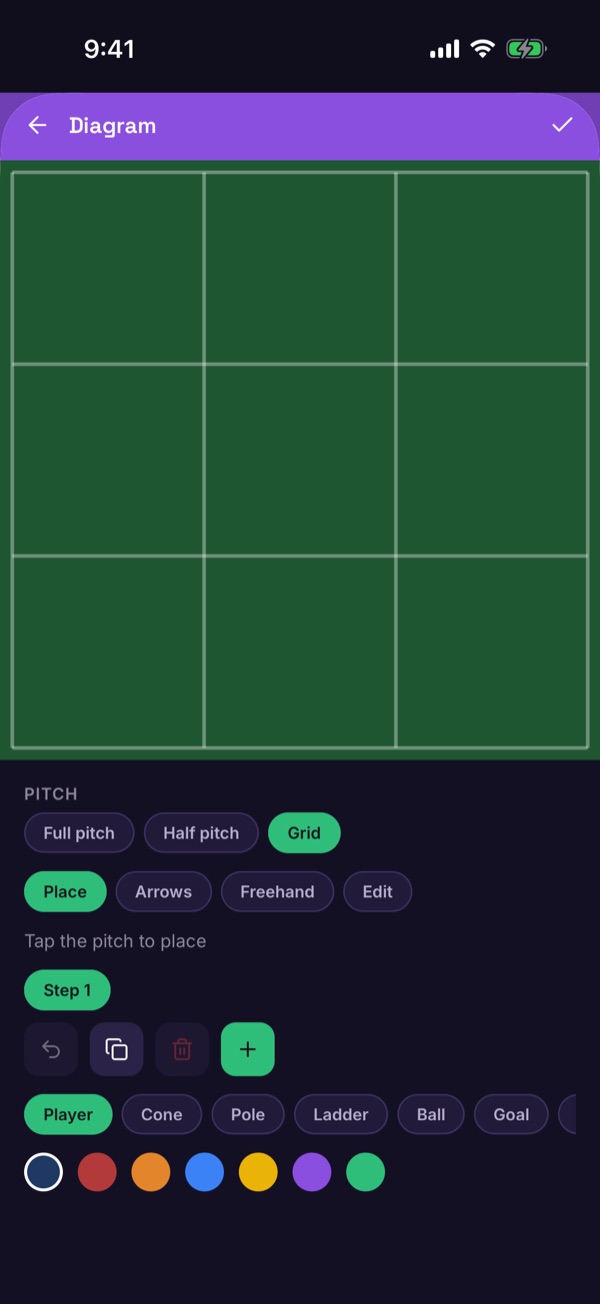
Choose a Full pitch, Half pitch or Grid. With Place selected, tap a Player, Cone, Pole, Ladder, Ball or Goal, pick a colour, then tap the pitch. Use Arrows and Freehand to show movement, and Edit to move things. Tap + to add another step.
-
Add equipment, organisation, explanation, coaching points and SO-CHANGE-IT
Back on the form, tap + under Equipment. Then add bullets under Organisation (size of the area, players per group) and Explanation (how it starts, what happens, the rules). Add each Coaching point with a short header and the detail. Finally, under SO-CHANGE-IT, note how you could change the session if you need to (different rules, more or fewer players).
-
Save
Tap Save. The activity appears in your library.