-
Sign in
Sign in with your email as a parent. Need help signing in?
-
Choose who's using the app
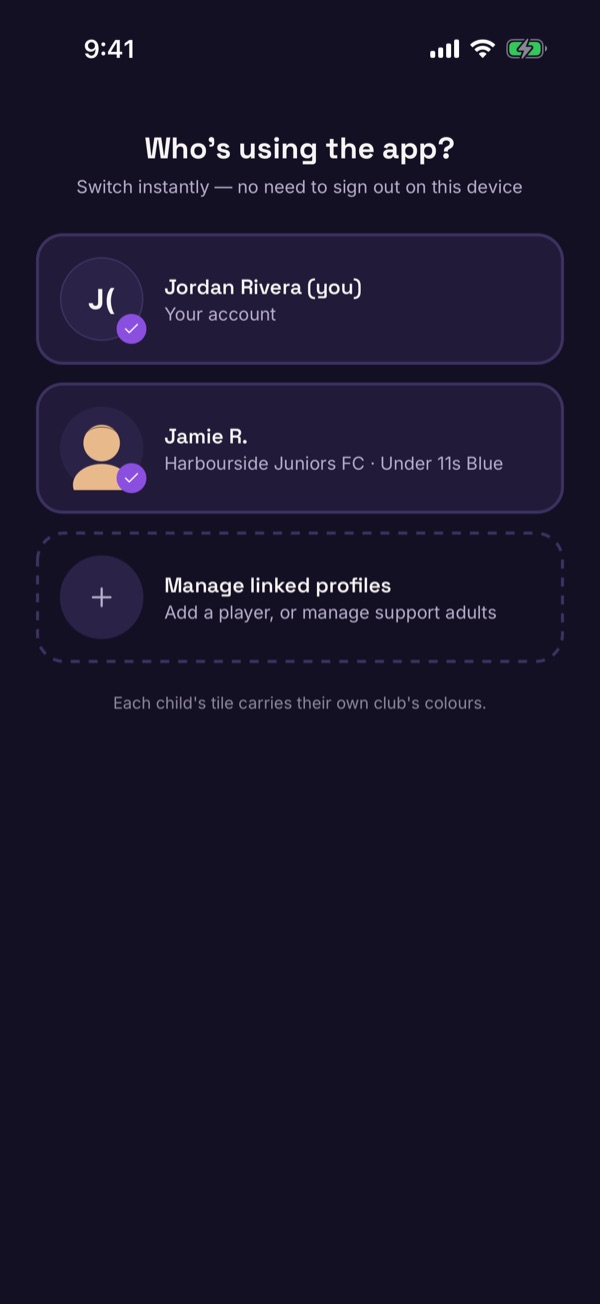
If you're linked to children, you'll see Who's using the app?. Tap your own tile, or a child's. Each child's tile shows their club and team.
-
Switch any time
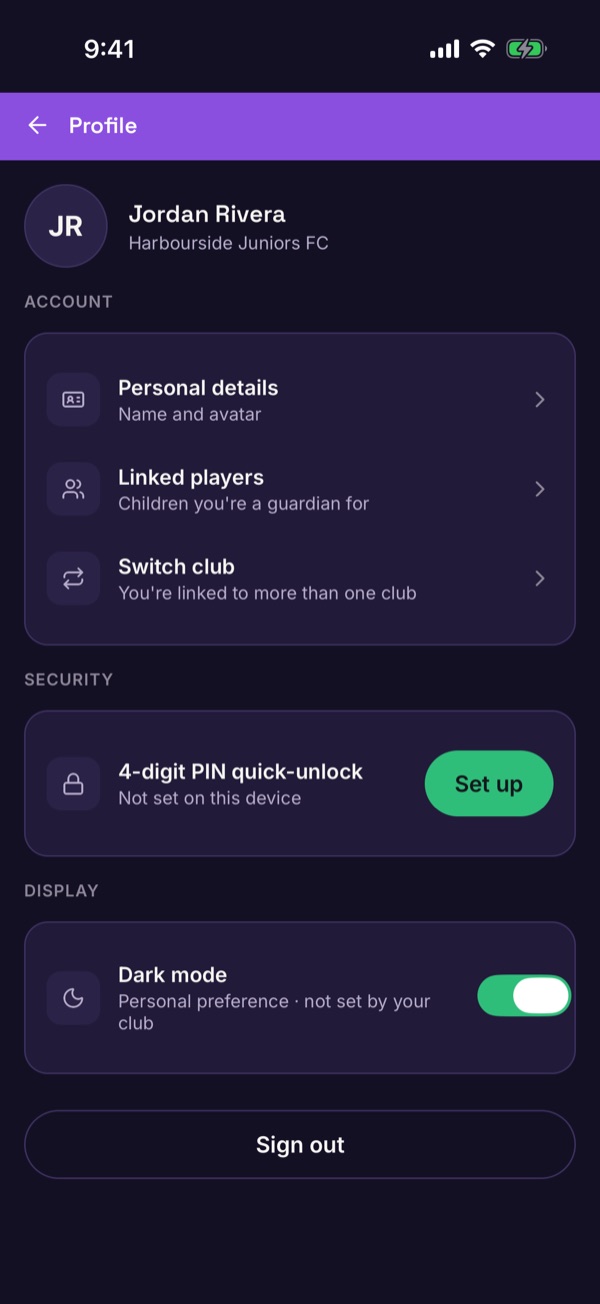
Tap the icon at the top right of Home to open your Profile, then tap Switch club. The list shows your own account and your children's. Tap one to switch.

-
Check who you're viewing
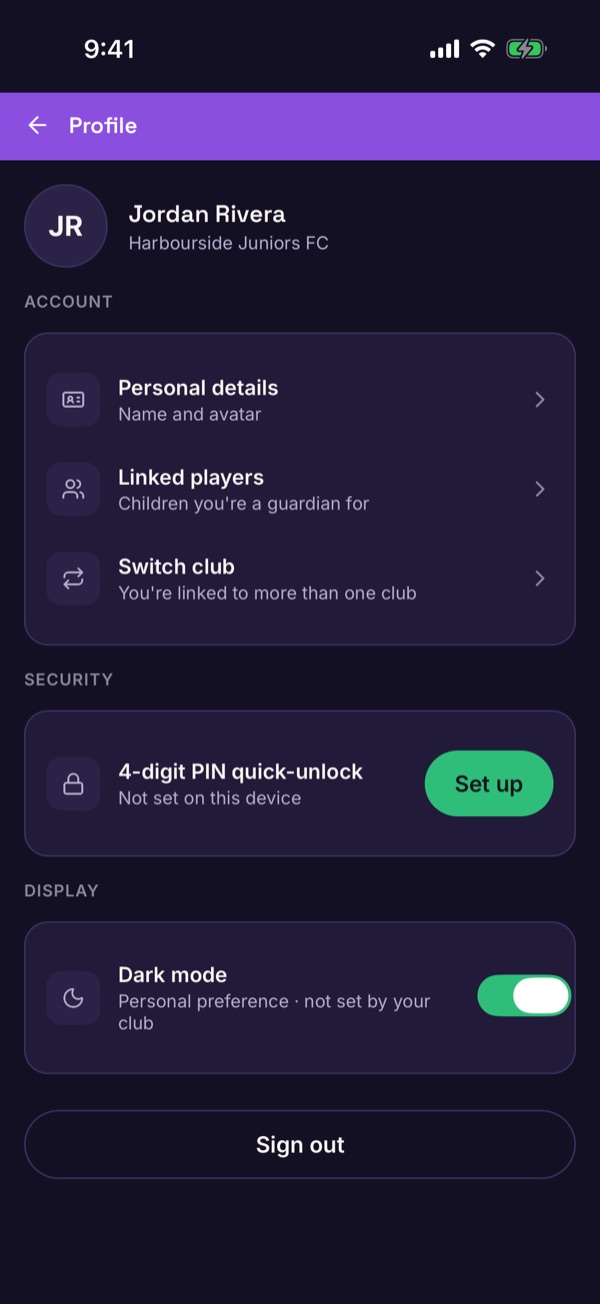
The header shows the club, and Home says Hi followed by the name of the profile you chose.
-
Add or manage linked profiles
On the Who's using the app? screen, tap Manage linked profiles to add a player or manage support adults. You can also reach it from Profile → Linked players.
Good to know. Players have their own sign-in with a username and password, so they can use their own phone. Player profiles use an avatar rather than a real photo — chat photo-sharing stays a family/coach choice, not a platform default.