-
Get the app
Jugazo is being piloted with clubs, so it isn't in the app stores yet. Your club will send you the download link: [App Store / TestFlight link]. Install it and open it.
-
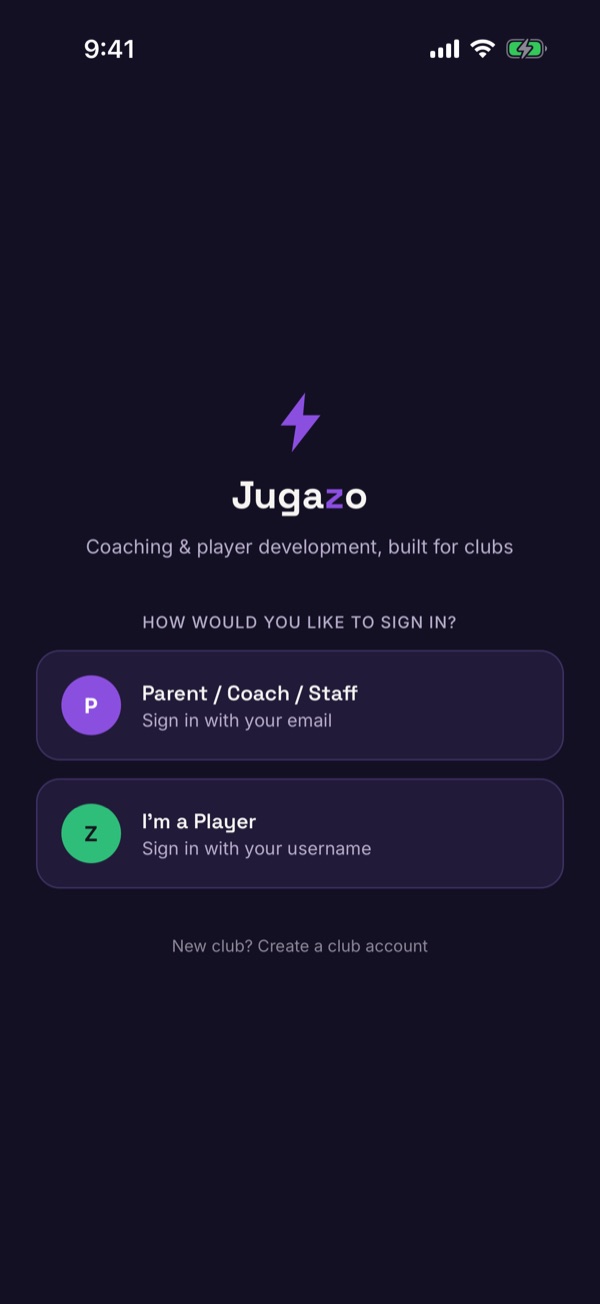
Choose how you sign in
Adults tap Parent / Coach / Staff. Players tap I'm a Player.
-
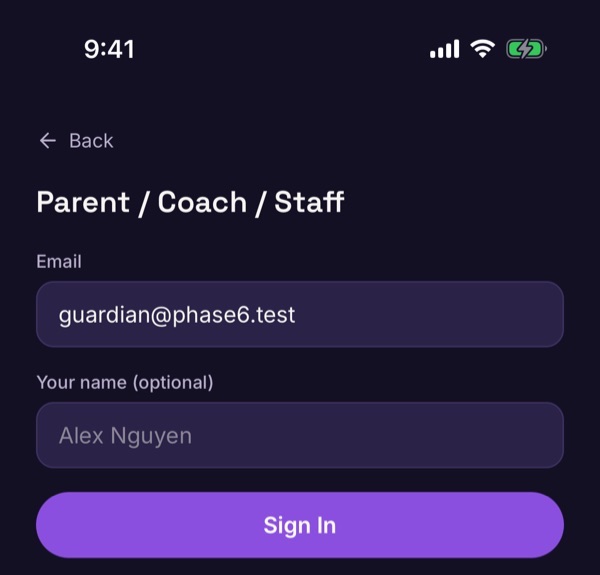
Adults: sign in with your email
Type the email address your club invited. Your name is optional. Then tap Sign In.
-
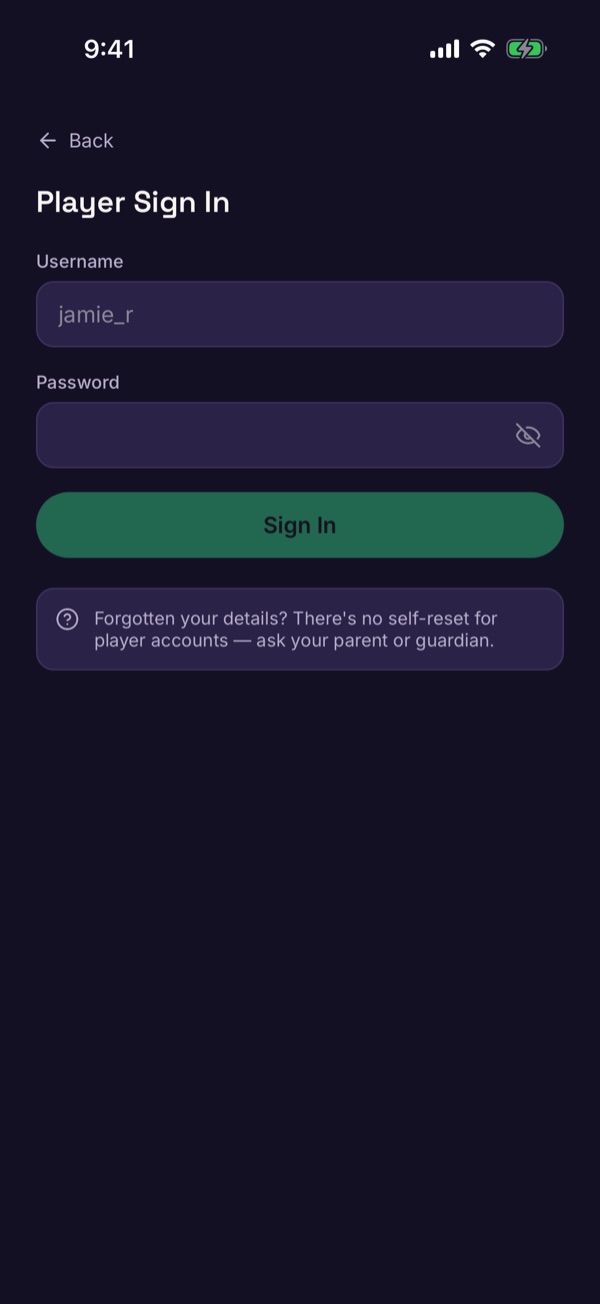
Players: sign in with your username
Type the username and password your parent or guardian set up, then tap Sign In. Players don't need an email address. If you forget your details, ask your parent or guardian — players can't reset their own account.
-
Choose who's using the app
If you're a parent with children in the club, you'll be asked who's using the app. Pick yourself or one of your children. How to switch profiles.
-
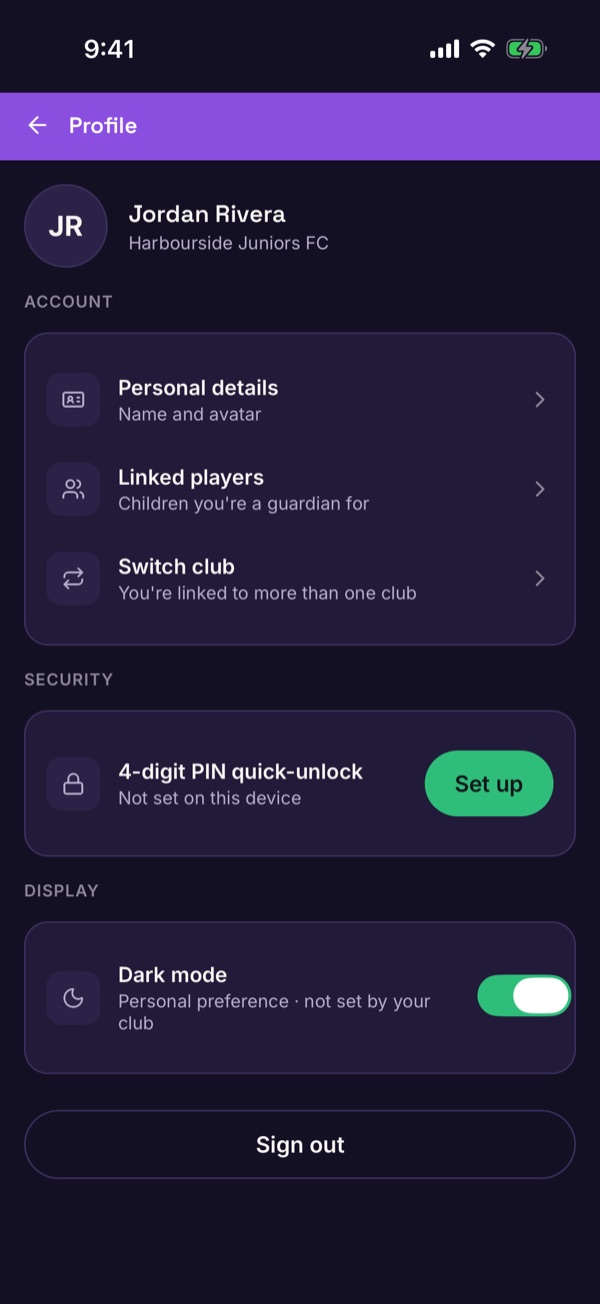
Optional: set a 4-digit PIN
Tap the icon at the top right of Home to open your Profile. Under Security, tap Set up next to 4-digit PIN quick-unlock. You can then unlock the app on this phone with the PIN.